
Appearance
Voices and presenters
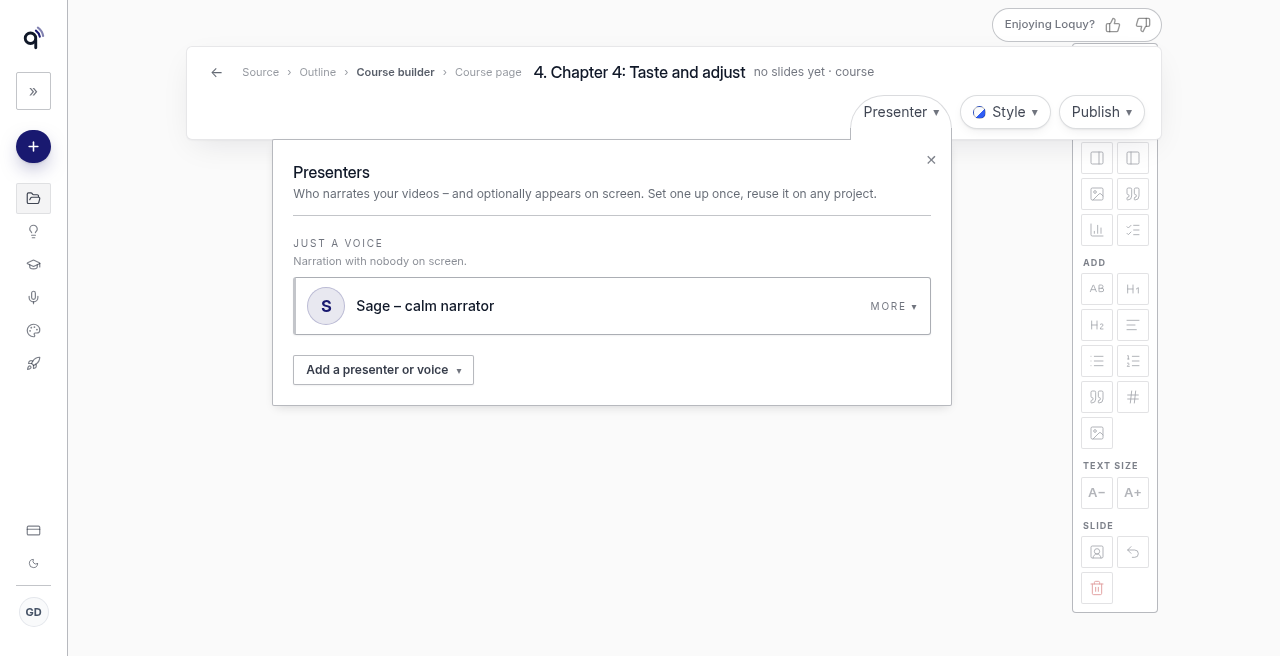
Standard includes 12 voices. It does not include a voice clone or on-screen presenters. Premium adds 1 clone and presenters. Business adds 3 clones.
Open Voices & presenters in the left menu (on a phone: Menu, top right), or open a lesson and use the Presenter door.
Page title: Voices & presenters. Line under it: Who narrates – and optionally appears in – your videos.
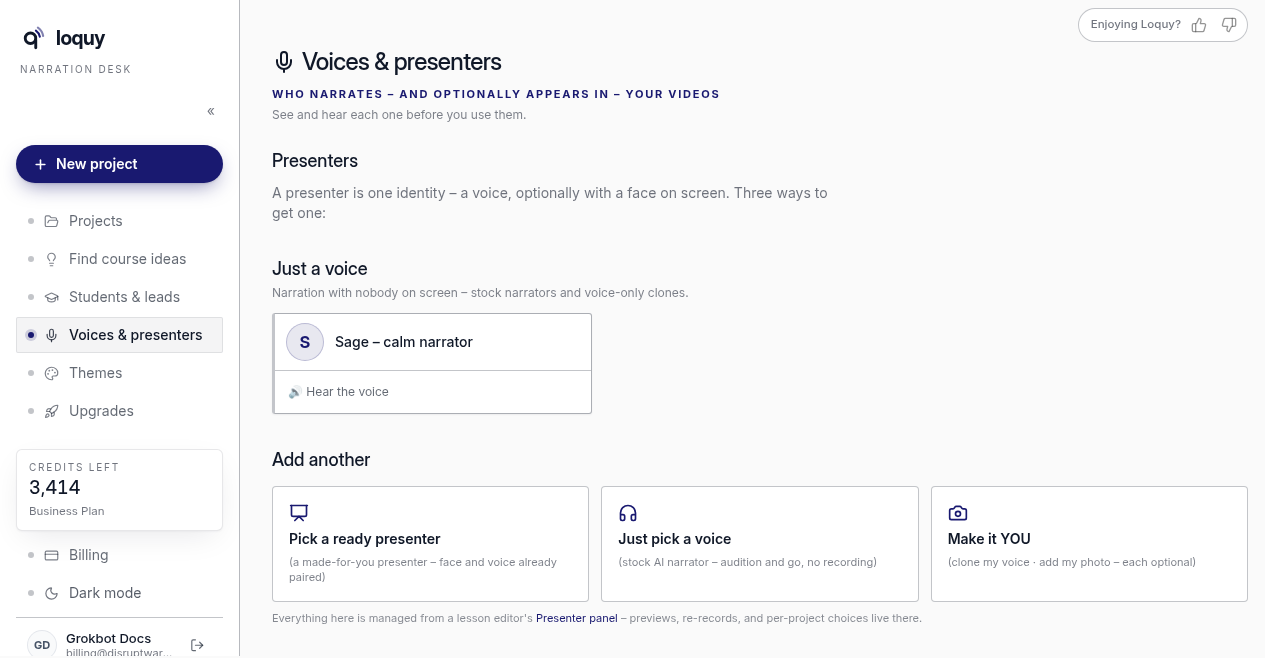
You must pick a voice before narrated slides or video can run.
If you never pick one and nobody in your workspace has a voice yet, a new course is narrated by the stock narrator Marin. A course you started before this change keeps the house default voice it has always used, so its narration and its finished videos stay exactly as they are. Pick a voice any time to change it.
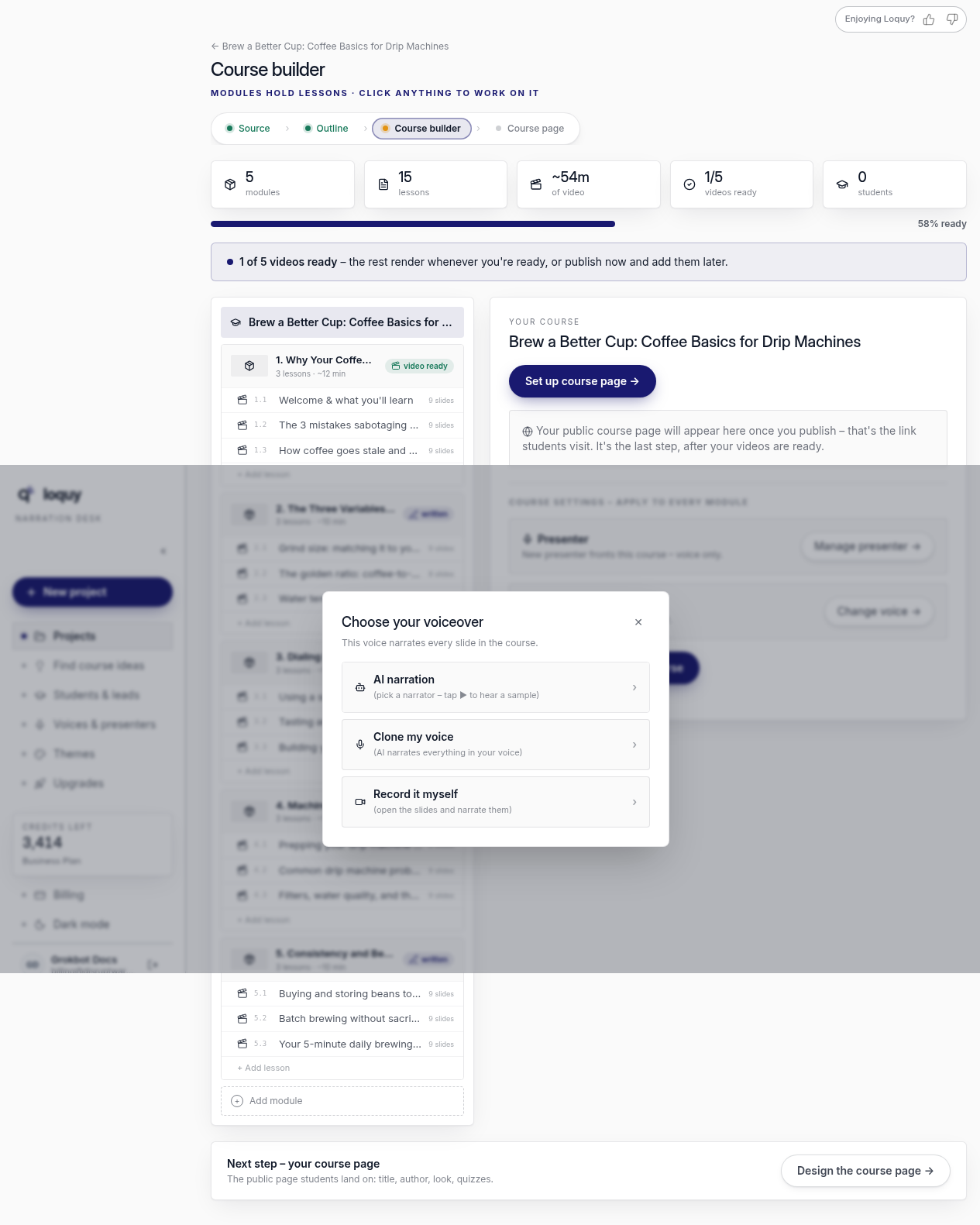
Choose your voiceover (Course builder)
In Course builder, click Choose your voiceover → (or Change voice → if one is already set).
The panel title is Choose your voiceover. Three options:
- AI narration — pick a narrator – tap ▶ to hear a sample
- Clone my voice — AI narrates everything in your voice (Premium and Business)
- Record it myself — open the slides and narrate them
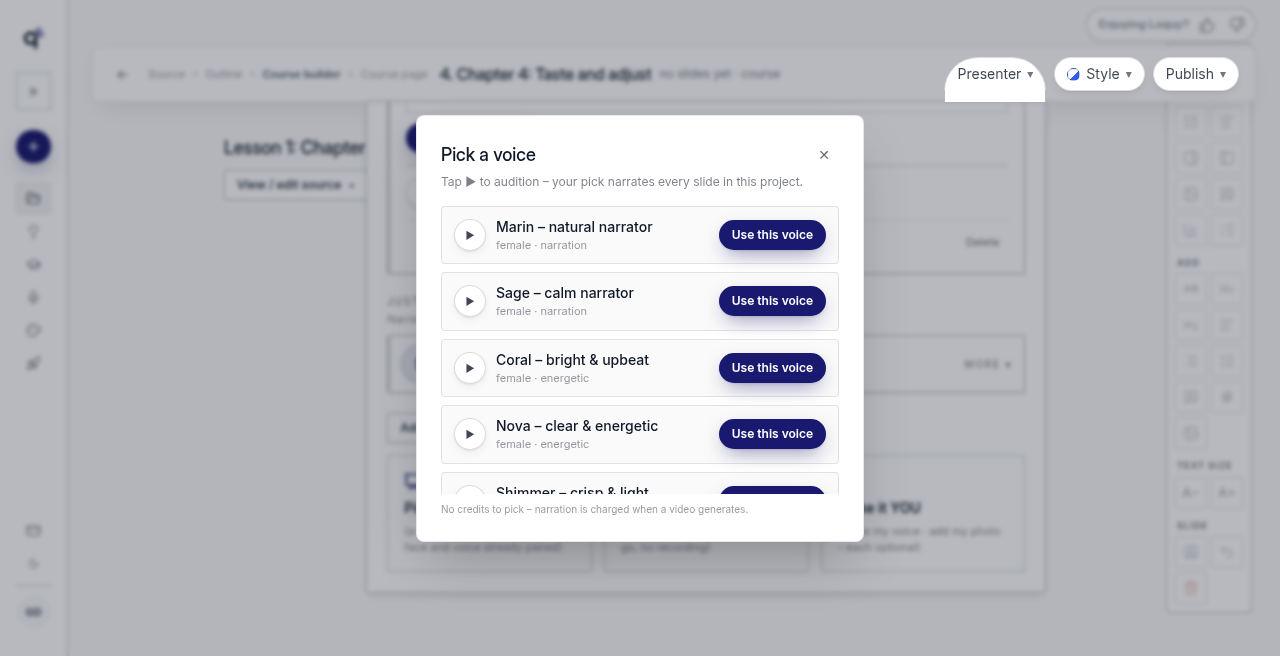
Just pick a voice (every plan)
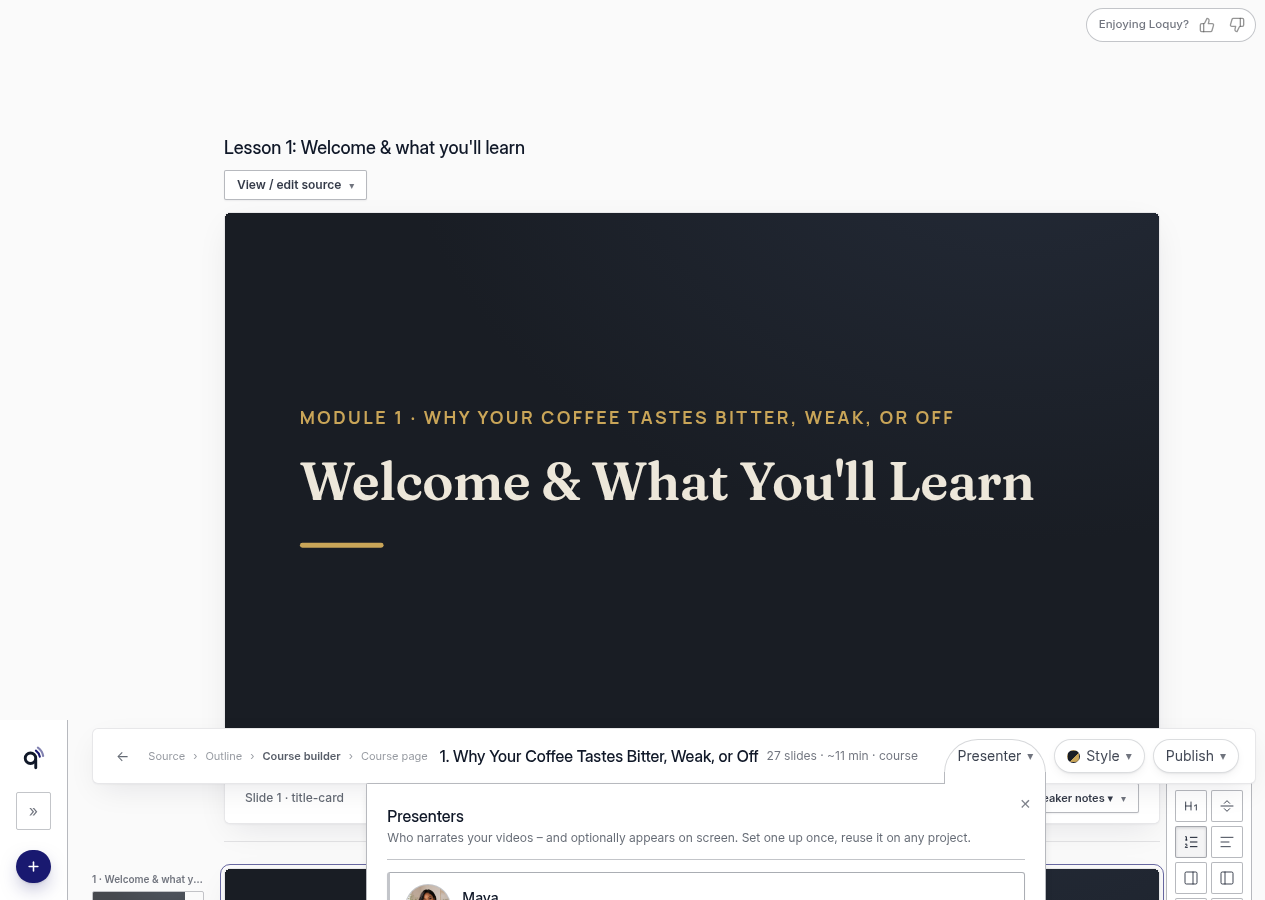
- Open Voices & presenters, or open a lesson → Presenter.
- Choose Just pick a voice (stock AI narrator – audition and go, no recording).
- Audition and pick one.
Stock voices on Standard (12): Marin, Sage, Coral, Nova, Shimmer, Alloy, Cedar, Onyx, Ash, Echo, Fable, and Ballad.
Premium and Business see the full catalog, including Verse.
You can also record or upload narration for a single slide in the lesson editor. That replaces the AI voice for that slide only.
Clone and presenters (Premium and Business)
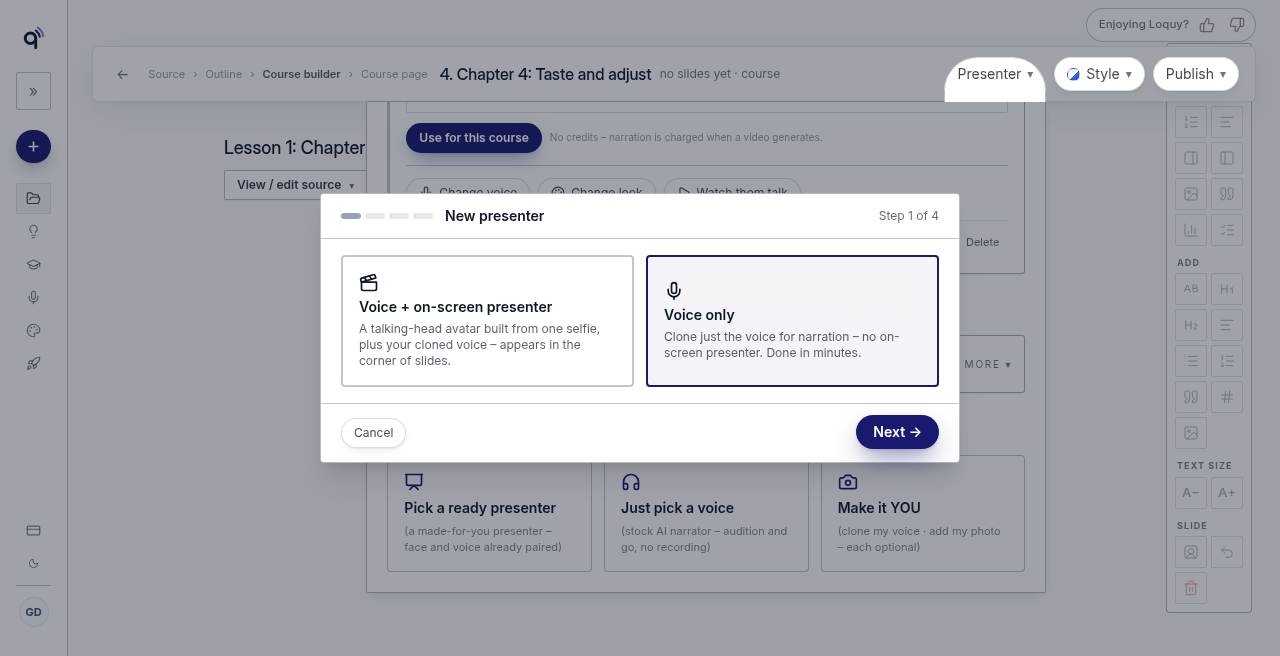
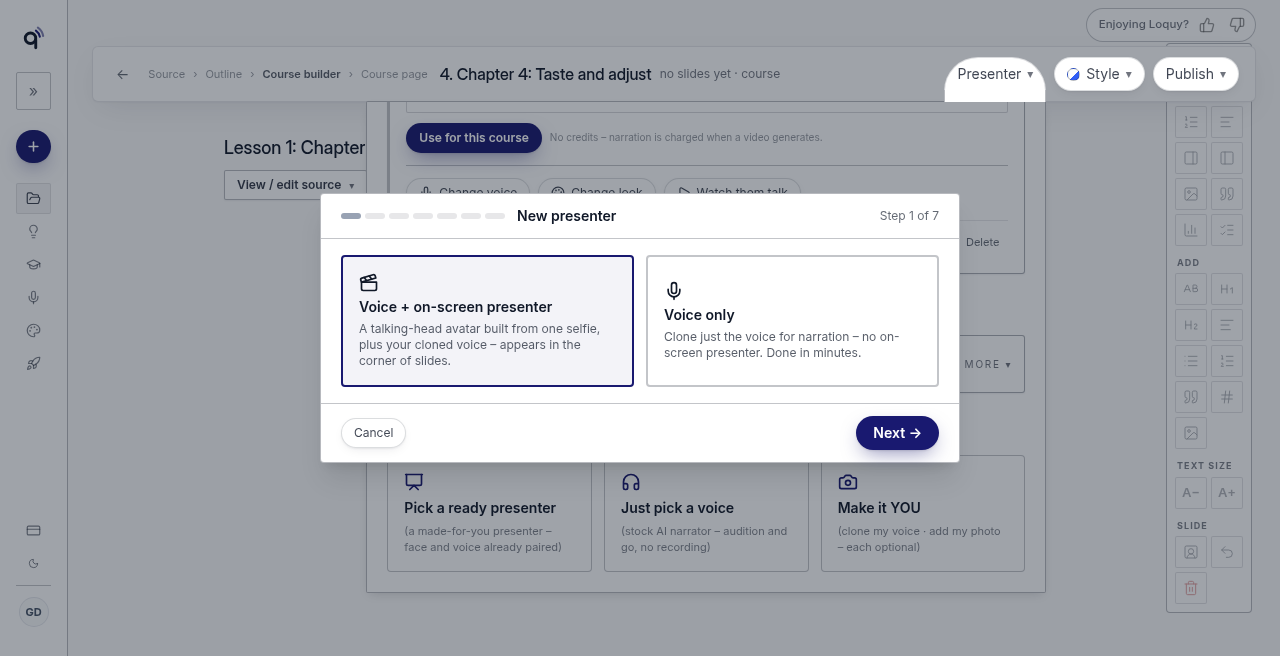
Premium and Business unlock two more doors:
- Pick a ready presenter — a made-for-you presenter – face and voice already paired
- Make it YOU — clone my voice · add my photo – each optional
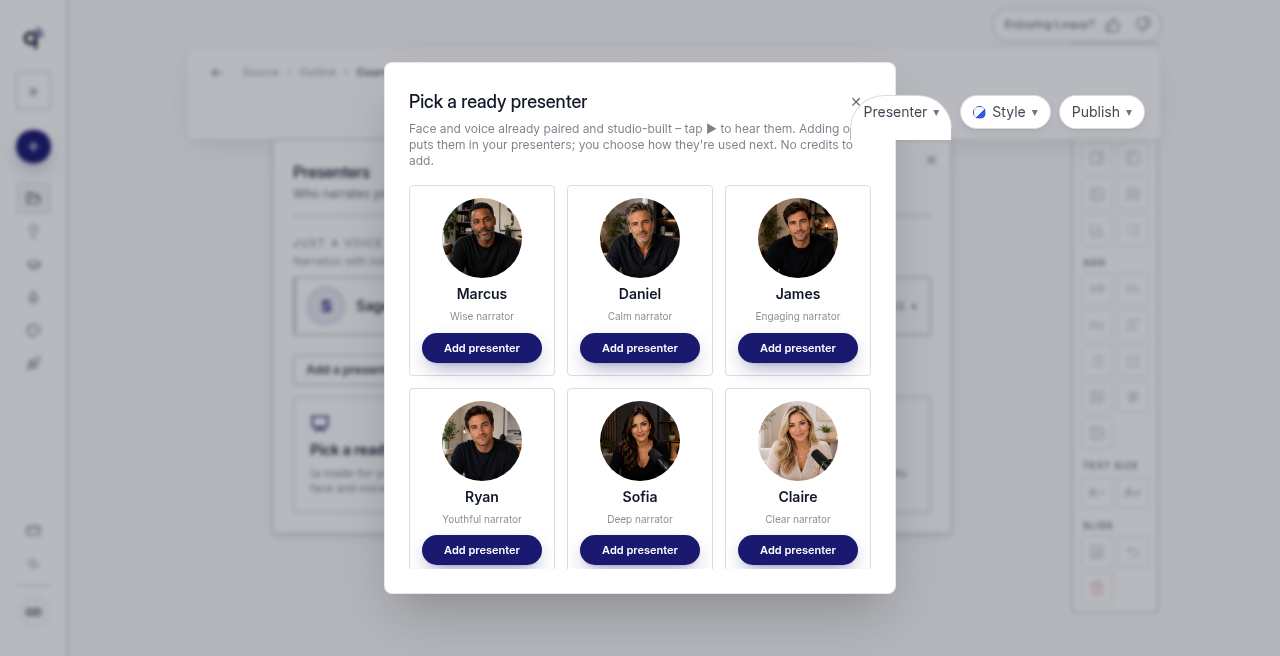
Ready presenters walked: Marcus, Daniel, James, Ryan, Sofia, Claire, Emma, Maya.
On Standard those doors show an upgrade message, including Premium – upgrade to make it you.
Premium has 1 clone slot. Business has 3.
Clone setup itself does not spend credits. Picking or setting up a presenter does not spend credits either. Speaking in videos still uses render credits later. Clip generation also spends credits. See Use in this course.
Business includes a 30-minute on-screen avatar bank. After that, avatar time uses credits.
Selfie and voice tips (Make it YOU)
For the selfie:
- Chest-up, facing the camera, even light on your face. No hats or heavy shadows.
- Drop a photo here or browse. Or click Use camera, then Take photo.
- The photo is labelled Your selfie.
- Tick the consent box: I have permission to use this person's face and voice, and it's not used to impersonate anyone.
For the voice:
- Read one short passage (~45 seconds) in a quiet room and we'll clone your voice – it narrates every slide and speaks in your presenter clips.
You can also Record or upload.
Use in this course (Premium and Business)
Open a lesson → Presenter. On a presenter card, Use in this course has:
- Voice + on-screen presenter — Narrates every slide, and can appear in the corner of any slide you choose.
- Voice only — Narrates every slide – nothing on screen.
- Face only (keep another voice) — greyed out. Not available yet – you can already pick who appears on a slide with its Presenter clip button.
Click Use for this course. The note says: No credits – narration is charged when a video generates.
Tip: on-screen presenter clips are the most credit-heavy part. A common approach is a presenter on slide 1 of a module, and TTS on the rest. You choose the face per slide in the lesson editor.
On that card you can also Change voice, Change look, and Watch them talk.
A presenter with no voice, or no face
Loquy uses the presenter you picked, and nobody else. It never borrows your own voice or face for them.
This applies to presenters picked from the October 2026 update on, and to every course created since. A course whose presenter was set up before that keeps working exactly as it did, including any voice or face it used then. Pick (or re-pick) its presenter to switch it to these rules.
- No voice yet. The card says Picked - no voice yet. Nothing in the course is narrated until you give them a voice. Clips, previews, renders, Re-voice and lesson MP3 updates are refused, and no credits are charged. The lesson MP3 is never rebuilt from takes spoken in another voice. Two exceptions need no voice: a lesson made only of your own recordings still refreshes its MP3, and a clip on a slide with your own recorded voice-over still works. Open Add a voice on their card (on people and on voice-only cards). You can record one, pick a stock narrator, or reuse one of your voices.
- Voice only. A voice-only presenter has no face. When you make a slide clip, choose who appears on that slide. The clip speaks in the voice of the presenter you choose, not the voice-only narrator's. See the preview clip.
If you skip the voice step when you set up a presenter (Skip - add a voice later), they have no voice until you add one.
Recorded in (cloned voices)
A clone can only speak the language it was recorded in.
On Voices & presenters, open a clone card. Find Recorded in. Pick the language, or leave Not sure.
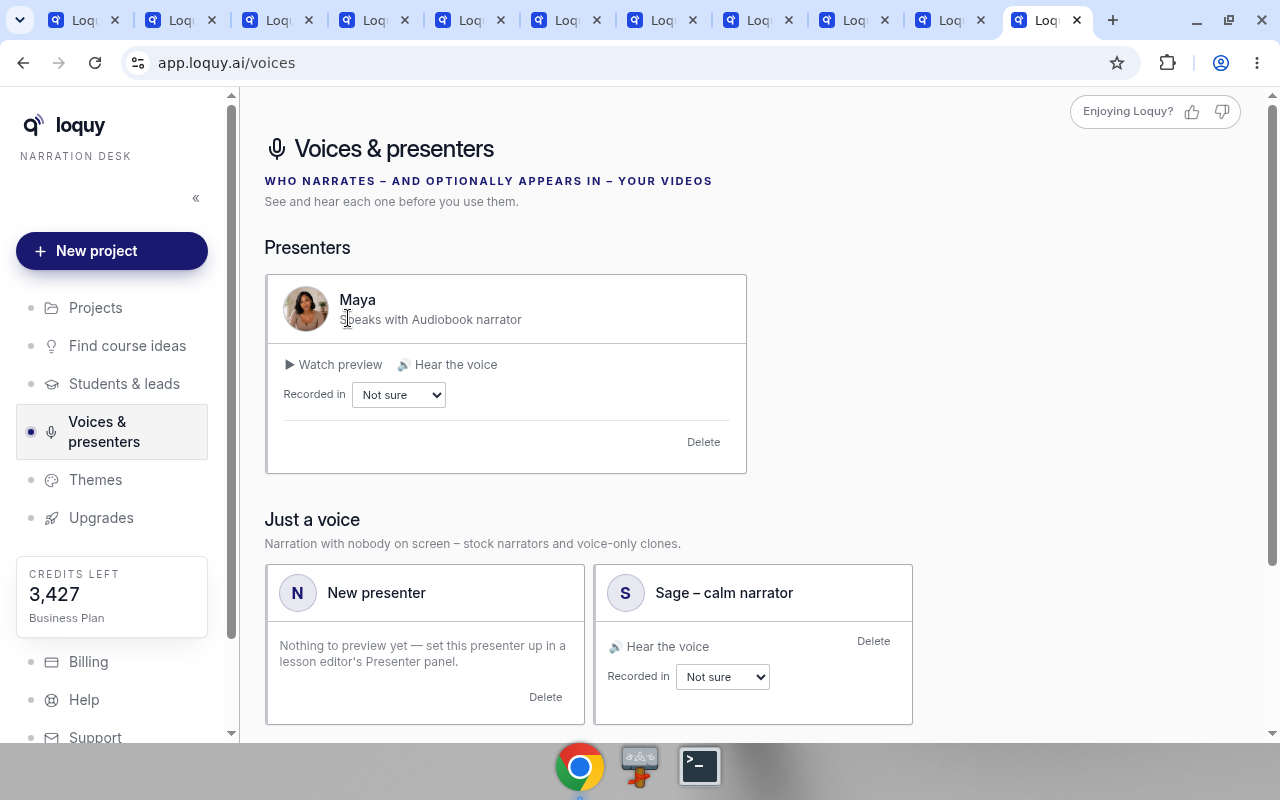
If the course language and the clone do not match, Loquy asks on Course builder or swaps to a natural voice in that language. See Course language.
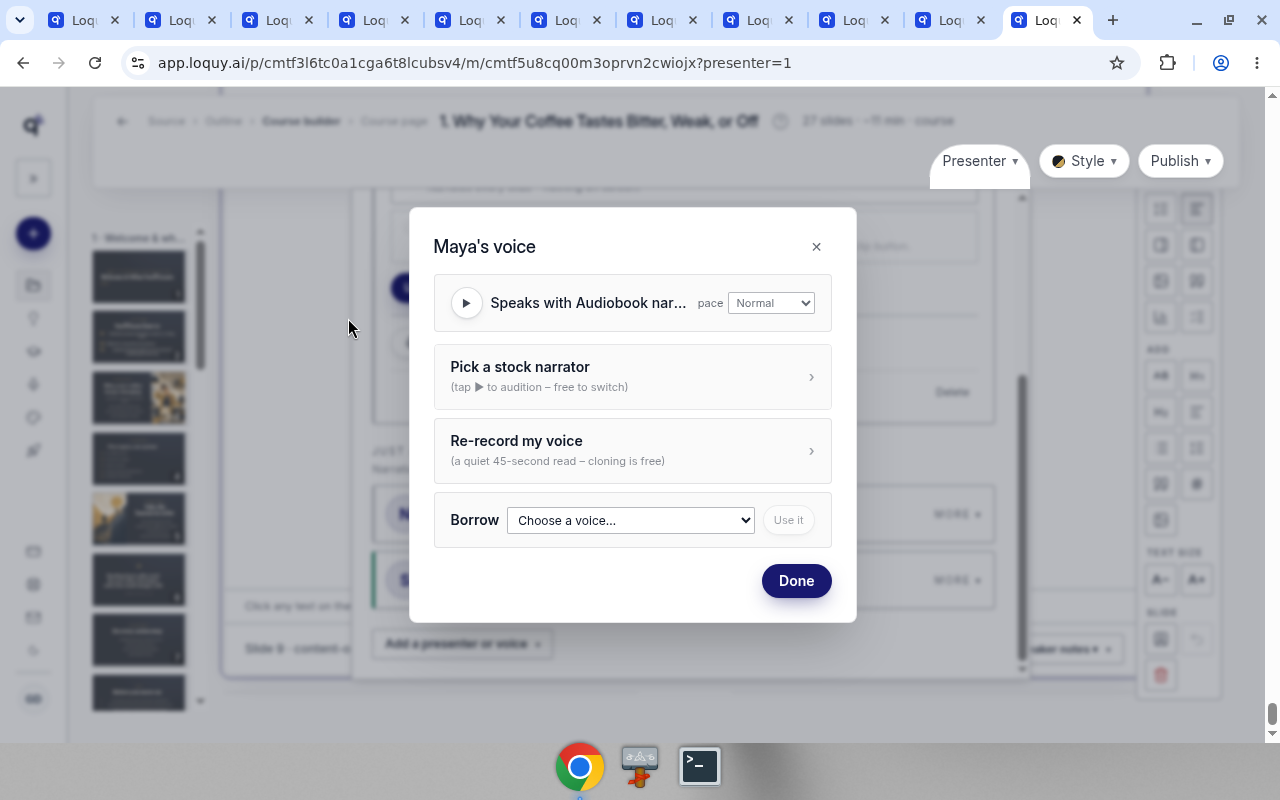
Change voice, pace, and Done
In the lesson Presenter door, open Change voice (or Add a voice).
You can:
- Hear the current voice and set pace — Half speed, Slower, Measured, Relaxed, Normal, Brisk, Fast, Faster
- Click Hear it and save as narration pace
- Pick a stock narrator
- Record or upload my voice (or Re-record my voice)
- Borrow another voice — the list starts at Choose a voice…, then Use it
Close the dialog with Done.
Watch them talk also has Done. Preview buttons there are Generate preview, Retry preview, or Regenerate preview.
Delete a presenter
On Voices & presenters, or on a presenter card in the lesson editor, click Delete.
Confirm with Yes, delete or Cancel. The tooltip says the voice clone and clips in the library are kept.
Add a presenter or voice
In the lesson Presenter panel, Add a presenter or voice opens the three doors and scrolls them into view.
See Compare plans if a door is locked. Then render the videos.