
Appearance
Import a book, doc, or website
Use this when you already have the content.
Open the import panel
- Click New project.
- Under already have the content?, click Start from my book, Google Doc, or website →
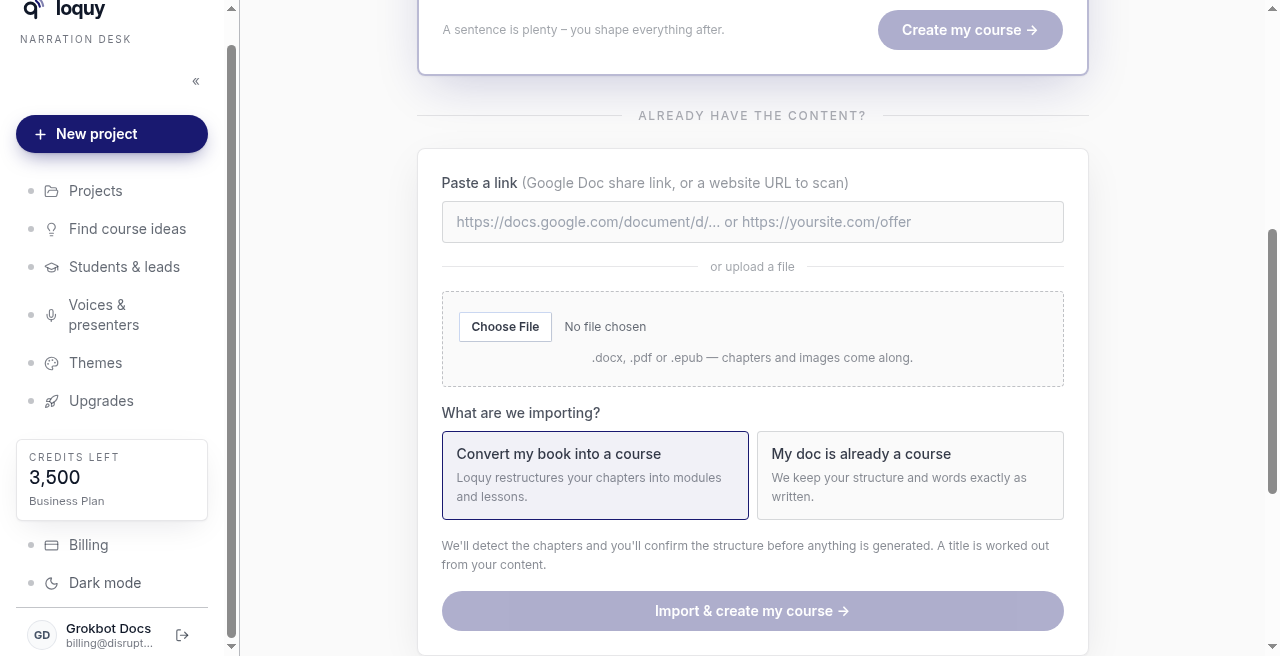
You can paste a URL or choose a file. You do not need both.
Paste a link
- In Paste a link, paste a Google Doc share link or a website URL.
- Choose how to treat the content (see below).
- Click Import & create my course →
The Google Doc must be reachable (usually “anyone with the link”). A website can be any https:// page that is not a Google Doc.
Choose a file
- Under or upload a file, use Choose File.
- Pick a .docx, .pdf, or .epub.
- Choose how to treat the content (see below).
- Click Create my course from this file →
Helper text on the screen: .docx, .pdf or .epub — chapters and images come along.
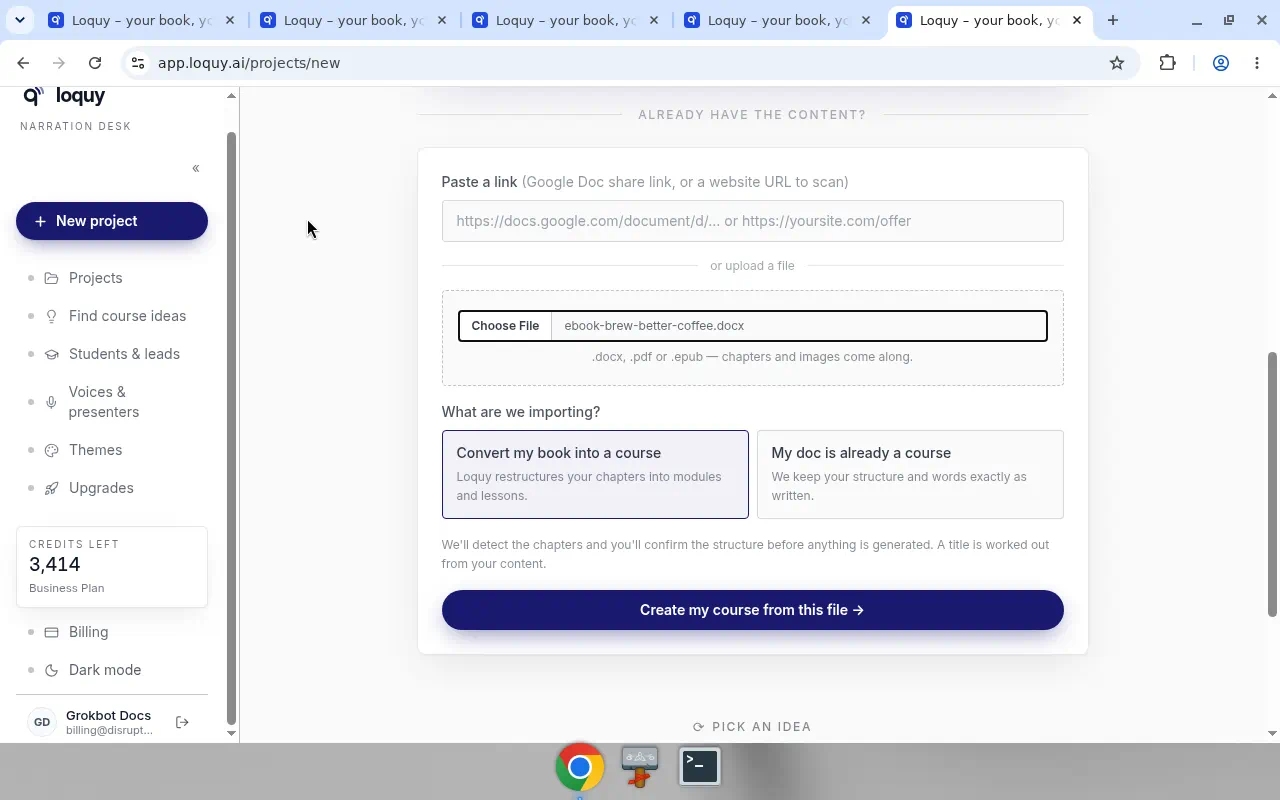
Old .doc files are not accepted. Save as .docx first.
Convert my book vs already a course
Under What are we importing? pick one:
- Convert my book into a course — Loquy restructures your chapters into modules and lessons.
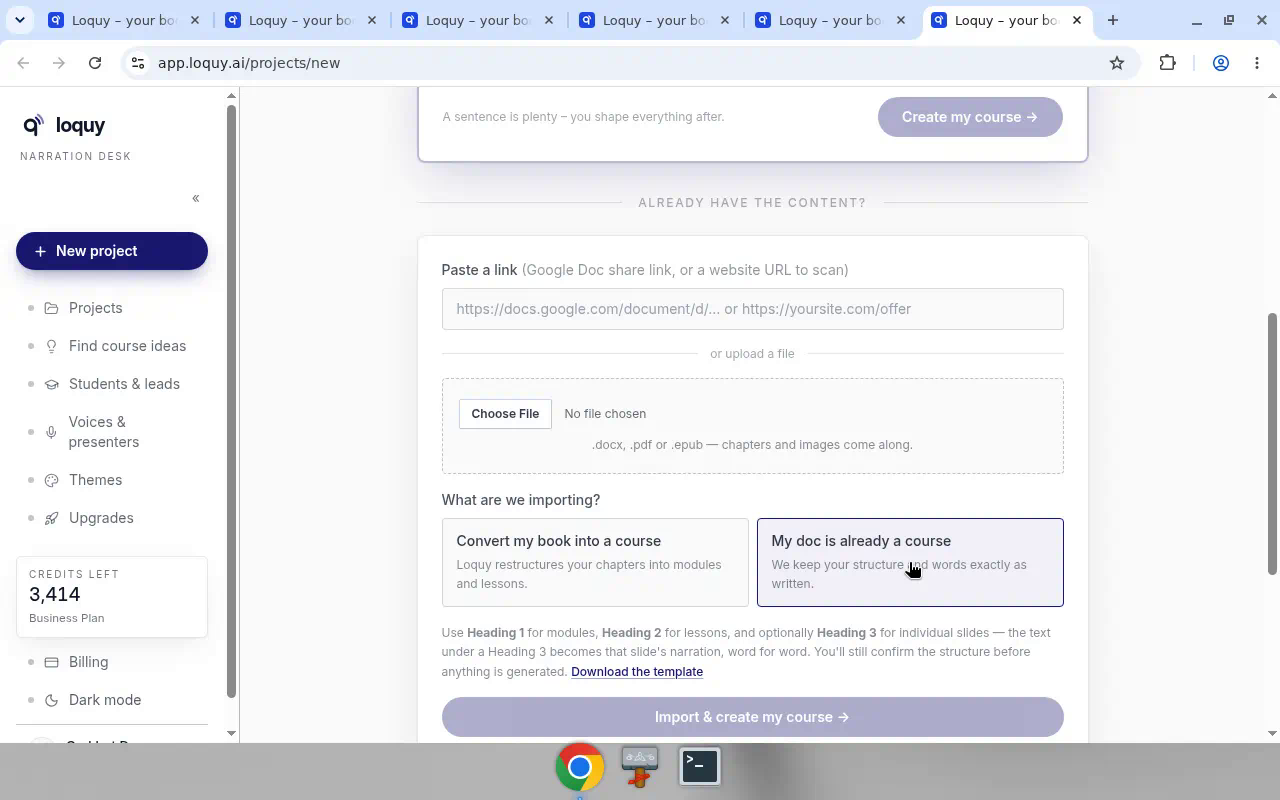
- My doc is already a course — We keep your structure and words exactly as written.
On convert, the helper says: We'll detect the chapters and you'll confirm the structure before anything is generated. A title is worked out from your content.
If you pick My doc is already a course, use:
- Heading 1 for modules
- Heading 2 for lessons
- Heading 3 (optional) for slides — the text under a Heading 3 becomes that slide’s narration, word for word
When this option is selected, click Download the template.
Confirm the outline
After the file or link is extracted, the project shows Confirm your outline.
- Untick any chapter you do not want. Front and back matter are already left out.
- Click Confirm outline →
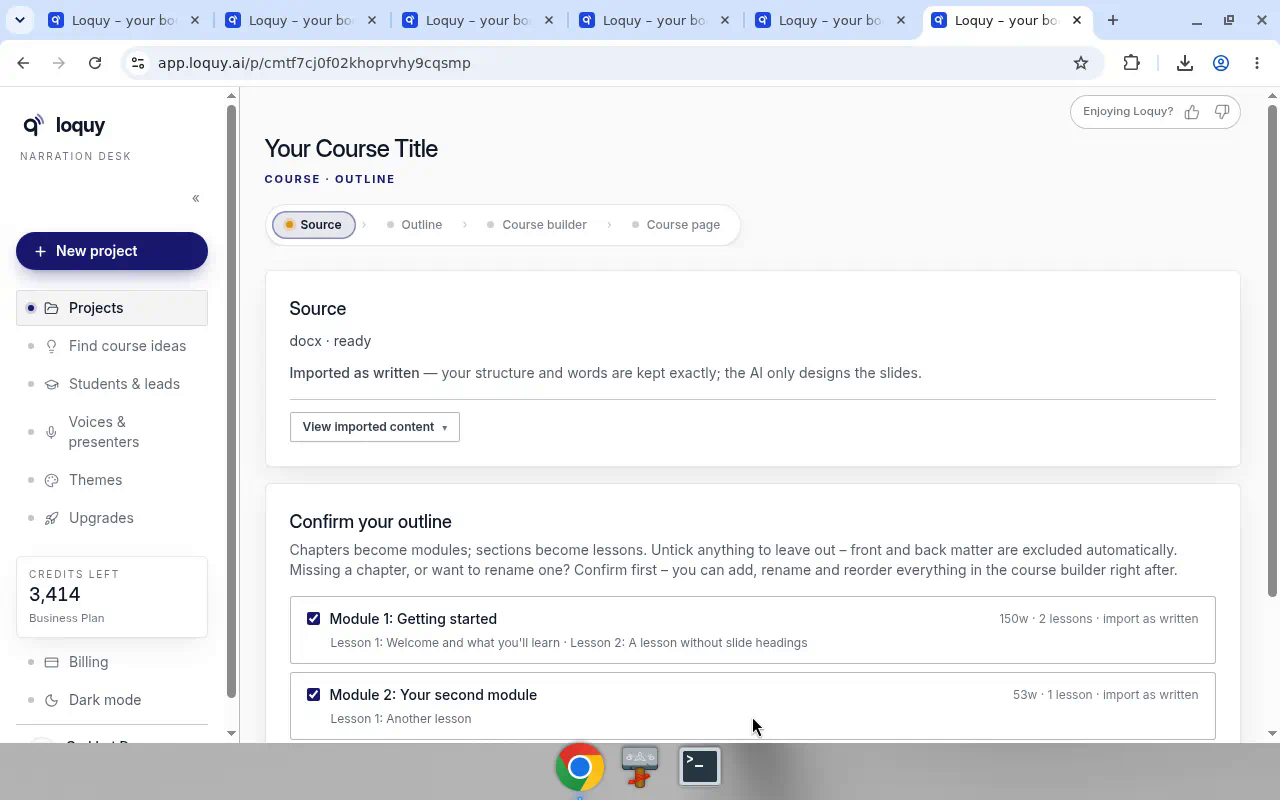
You cannot fully rebuild the tree on this card. After you confirm, use the Course builder to add, rename, or reorder.
If no chapters were found, the import becomes one module. You can reshape it after you confirm.
Text before your first heading
Everything you wrote above your first heading is kept as lesson text, except the few things listed below. Where the kept text goes depends on its length:
- 60 words or more - it becomes an Introduction module at the start of the course (for text between a chapter heading and the chapter's first section, an Introduction lesson at the start of that chapter).
- Shorter, down to a single line - it is added to the start of your first lesson.
- Text above a table of contents - it becomes a Front matter module at the start of the course.
The Heads up box on Confirm your outline says which one happened, with the number of words - for example 120 words of text before your first heading are imported as an "Introduction" module at the start of the course or The 30 words before your first lesson heading were added to the start of "Lesson 1". Rename, move or leave out the Introduction like any other module.
Only these are not imported:
- Your title page - up to the first three short lines at the very top of the document (title, subtitle, byline; up to 12 words each, no full stop), before any other line. Skipped quietly. A fourth short line is lesson text, and so is any short line that warns or points to help ("Content warning: ...", "Call 999 if you are in immediate danger", "Anyone under 18") or leads into the lines below it ("Who this course is NOT for"), even at the very top.
- Copyright lines - lines with ©, "All rights reserved" or an ISBN. Skipped quietly.
- A table of contents - a "Contents" or "Table of contents" line and the entries under it (lines with dot leaders, short lines ending in a page number, or a Word list). It ends at the first line that is not an entry - a helpline or phone number ("Samaritans 116 123"), a safety line, or a number lower than the page before it is never an entry. Skipped, and the Heads up box says so.
- A dedication ("For my mother, who taught me how to listen.", "In loving memory of ...") - skipped, and always listed in the Heads up box, for example Not imported (title page): 4 lines before your first heading - "For my mother, who taught me how to listen.", "Repairing Trust", .... The same goes for the template's "How it works" note if you leave it in.
To keep a line that was not imported, move it under a heading in your document and upload it again.
File too large
The usual limit is 30 MB. A big Word file is almost always the pictures, not the writing.
In Word: File → Reduce File Size… (or click a picture → Picture Format → Compress Pictures). Choose on-screen / 150 ppi, apply to all pictures, save, and upload again.
After import
The project Source card is where you check the extract and set two controls.
Course language
- Follow my document — the AI writes in whatever language your source is in
- Or pick one of the 15 course languages (for example Spanish · Español)
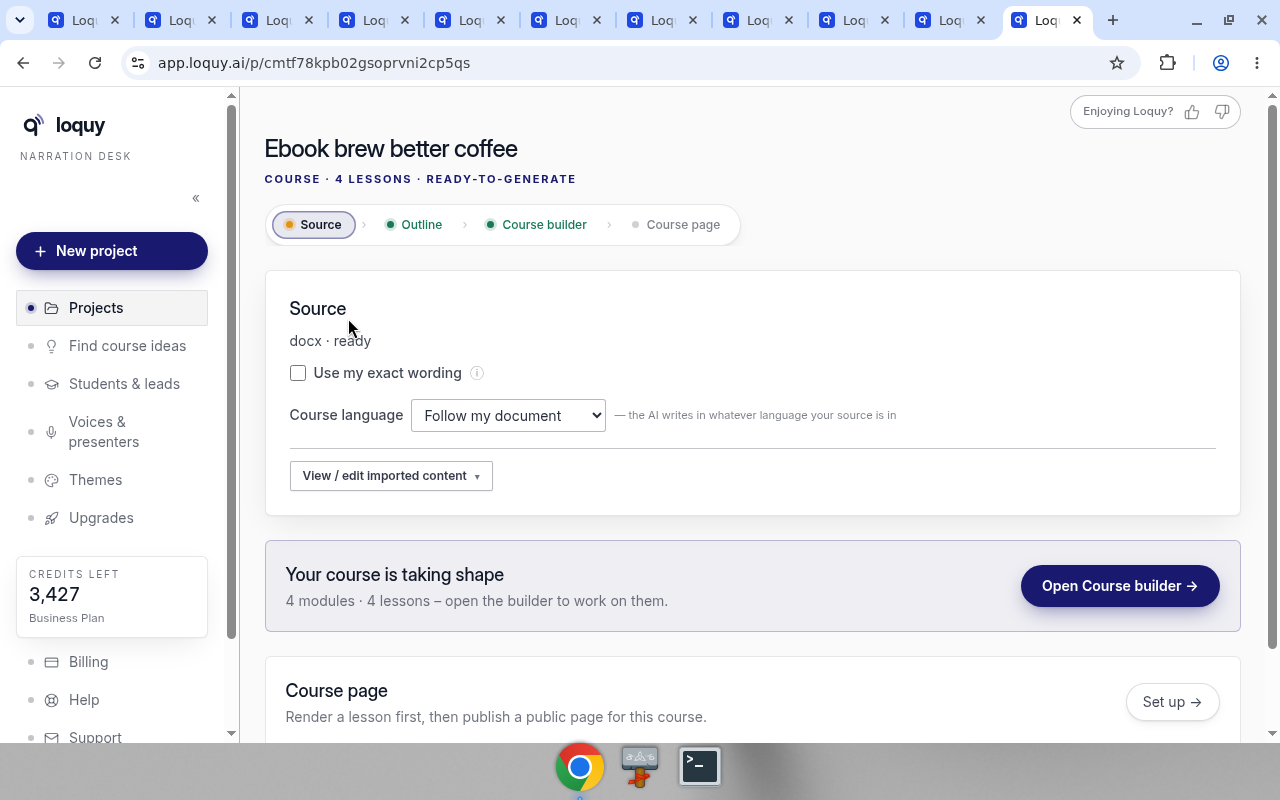
Set this before you confirm the outline. See Course language.
Use my exact wording
This checkbox is on Source after a Convert my book into a course import. It is off by default.
- Off: Loquy studies the document and writes fresh narration (best for books and raw notes).
- On: your text becomes the narration word-for-word; the AI only designs the slides. The line next to the box says: — your text becomes the narration word-for-word; the AI only designs the slides
With the box on, each heading in your document starts a new slide, so a slide never opens with the end of the topic before it. For a course made before 26 October 2026, see Fix narration split.
Hover the ⓘ for the same off / on explanation.
My doc is already a course already keeps your words, so the checkbox is hidden. You see Imported as written — your structure and words are kept exactly; the AI only designs the slides.
View / edit imported content
On Source, open View imported content before the outline is confirmed, or View / edit imported content after it is.
Before confirm, this is a viewer. Confirm the outline to edit per lesson. Edited rows can show an edited chip.
Next: Approve the outline if you started from a sentence, or go to the Course builder after Confirm outline →.