
Appearance
Course builder
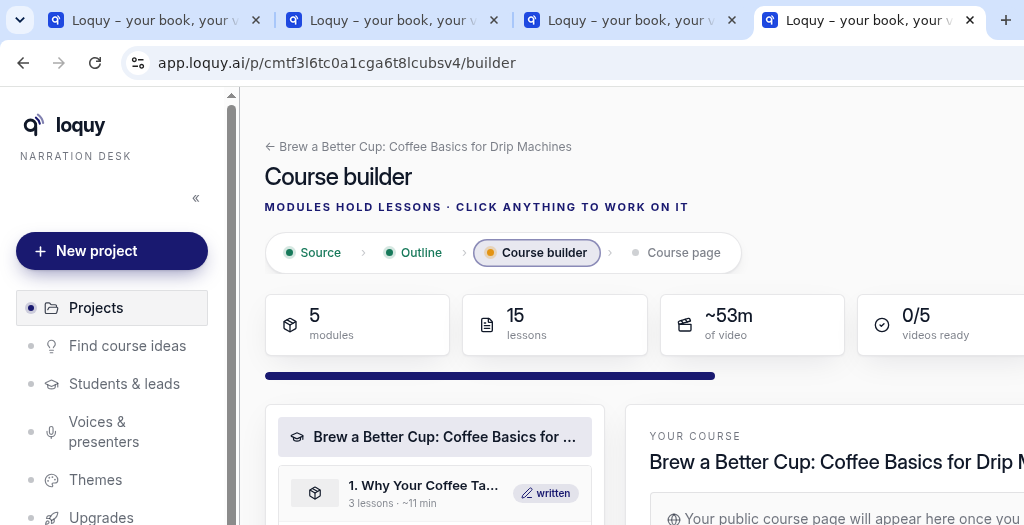
Course builder is the step after the outline. Open it from the project stepper or from the project after writing finishes.
Here you work module by module: slides first, then video later.
Before you generate
- Open the project.
- Go to Course builder.
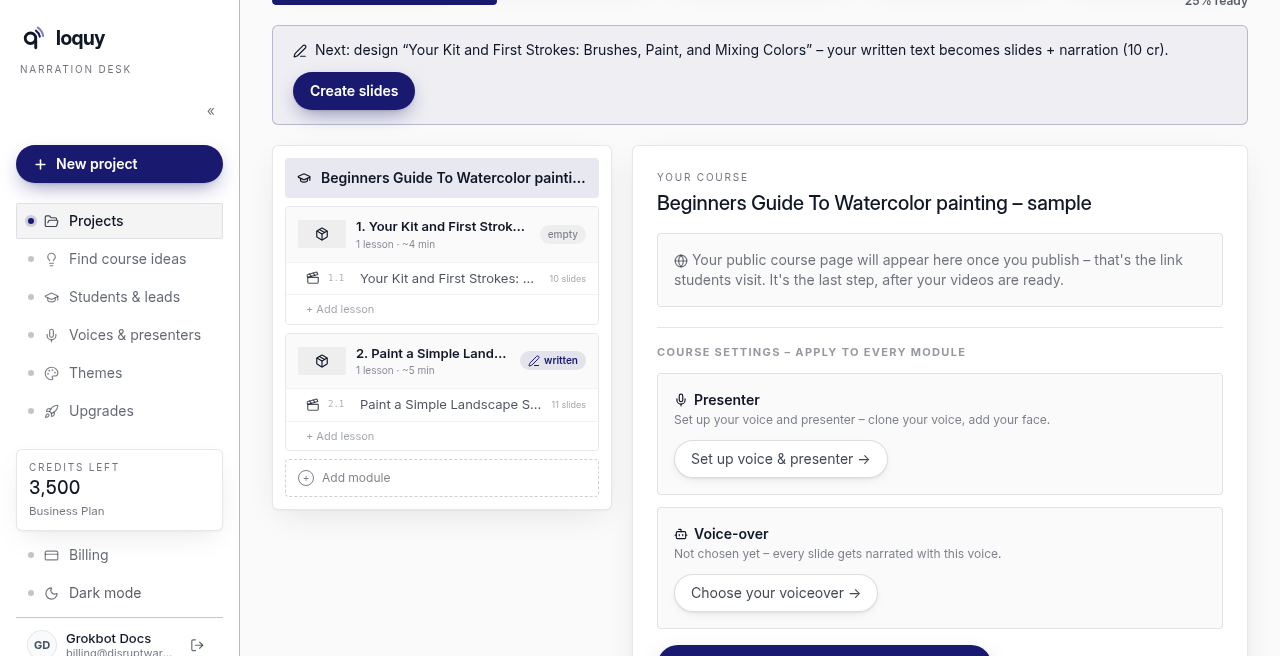
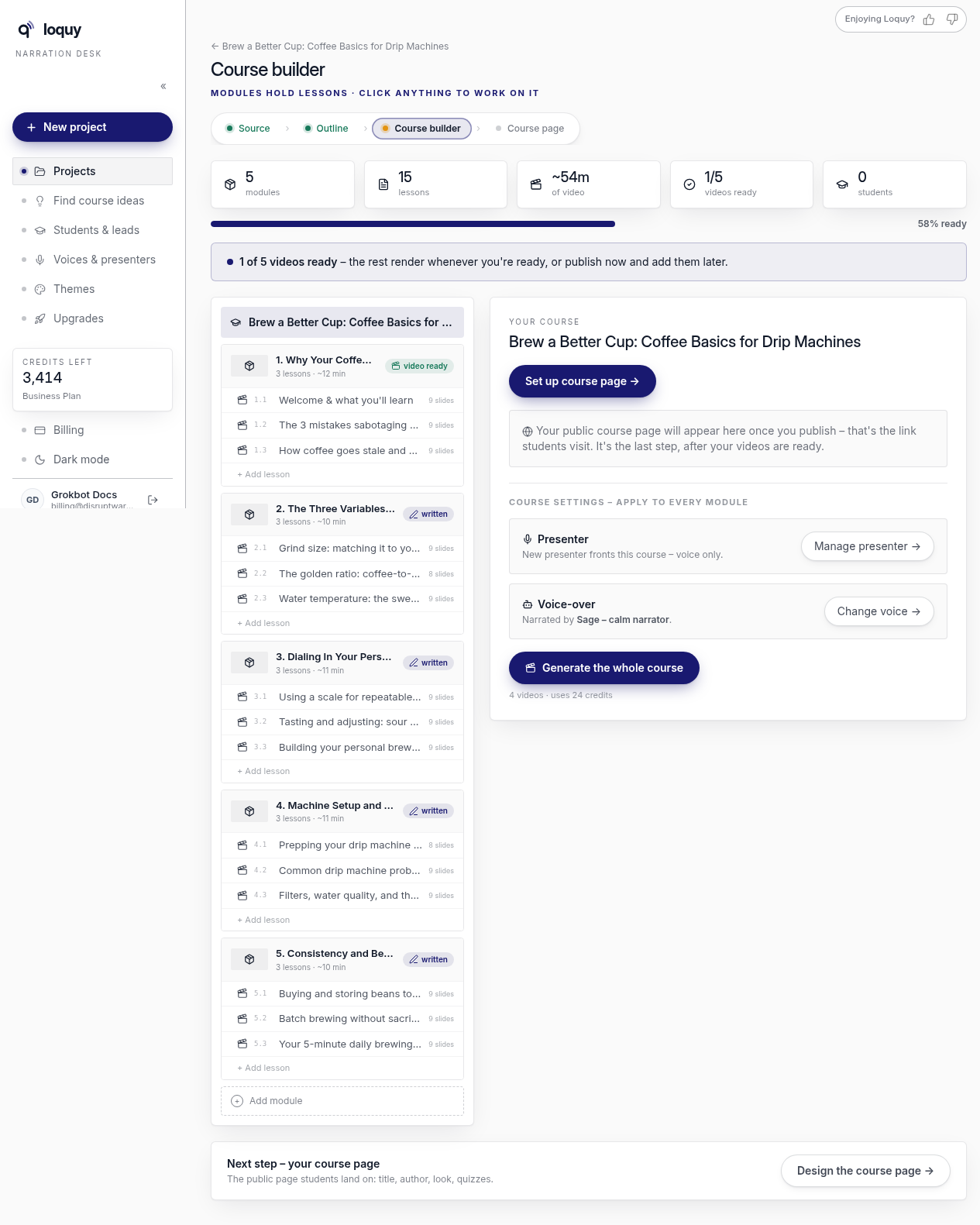
- If you have not picked a voice, click Choose your voiceover → (or Change voice → if one is already set).
The Choose your voiceover panel is required before narrated slides or video can run. Options: AI narration, Clone my voice, Record it myself.
Standard can pick from 12 voices. Clone and on-screen presenters are Premium and Business. See Voices and presenters.
If the course is not English and you used a cloned voice, a card can appear: One quick thing about the voice. Say whether the clone is in the course language or English. See Course language.
Add and reorder modules and lessons
- + Add module adds a module at the end; + Add lesson adds a lesson at the end of its module. New lessons start empty.
- Hover a module or a lesson to see ▲ and ▼. Modules move within the course; lessons move within their own module (they cannot move to another module after the outline is approved).
- Numbers like 1.1, 1.2 follow the order, so they update when you move or delete something.
- To put a new lesson first, add it, then click ▲ until it is at the top.
Moving a lesson in a module that already has a video means that module needs a new render.
Create slides
On a module that does not have slides yet, use Create slides.
You may also see a course-wide control: Create slides for all (or the remaining) modules.
Slide generation for a default 5-module course is about 50 credits (the “Design the slides” row).
The sample project does not spend credits.
If your credits run out while slides are made
After a course is written, Loquy makes the slides module by module, and each module uses 10 credits when it starts. If your credits run out part-way, it stops and tells you:
- A yellow bar says Slides stopped - you ran out of credits, how many modules still have no slides, how many credits they need, and how many you have.
- Every module that is waiting shows needs credits in the course tree. Open one and it says what it needs.
Click Top up credits → to buy more on the Billing page. Then come back and click Continue making slides. Loquy only makes slides for the modules that still have none - modules that already have slides are not made again or charged again. If you can only afford some of them, the rest keep their needs credits label until you top up again.
Slides with no narration
If the AI made a slide but no narration for it, it would be silent in the video. The builder shows a yellow bar naming the module, and the lesson shows N silent in the course tree. Slides you added or emptied yourself, and slides that use your exact wording, are not counted here. Click Write the missing narration (free) to have the AI write it - this is free, up to 3 times a day per module. See Lesson editor.
Make video (optional whole-course button)
You do not have to click Generate the whole course. Module by module is fine.
That control can appear when several modules already have slides. It may say 4 videos · uses 24 credits. Skip it if you want to render one module at a time.
On one module with slides, click Generate the module.
See Render for progress lines (Creating your videos · module N of 5, Narrating slide X of Y) and the module Video modal (Add an AI intro with 12 cr on the right, Record the whole module myself).
| Step | Credits |
|---|---|
| Write the 15 lessons | About 30 |
| Design the slides | About 50 |
| Video later | About 30 |
| Whole default course | About 110 |
Approve writes the lessons and slides — about 80 together.
If a job fails, Loquy refunds those credits. You can retry.
While it runs
Stats show videos ready — for example 0/5, then 1/5.
Finished modules unlock as they complete.
If a run sits too long, the module can show as stalled. Retry. A dead run refunds credits.
After slides exist
Open a lesson and click Open slides → to edit layouts, Style / illustrate, narration, and per-slide presenters in the Lesson editor.
Pick a theme any time. Changing the look does not rewrite the outline.
When a hosted page is published, the course title can show a LIVE badge. The right-hand card says Your page is live · public (or unlisted / password) · quizzes on (or off), with Manage course page →. Before publish, that button says Set up course page →.
A module that has a quiz can show a quiz icon next to its badges.
When you are ready to put the course online, see Course page (Premium and Business) or Download (every plan).